QR Codes
Every published passport gets a QR code that resolves to its public consumer page. Pasera generates these as SVG files with a transparent background and dark (#111118) modules — so you can drop them straight onto your own hang-tag, care-label or packaging artwork without a white box around them.
Try it
Scan this — it’s a real Pasera QR code (transparent, with the brand mark in the centre). It points to the EU’s Ecodesign for Sustainable Products Regulation (ESPR) hub:
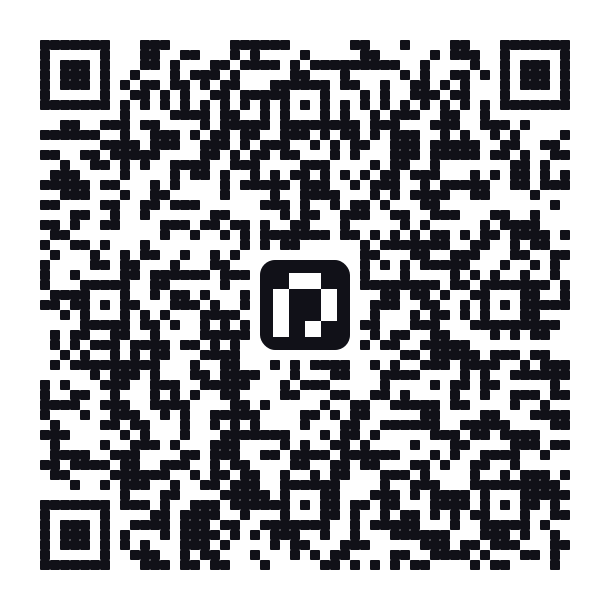
Notice it has no white background of its own — it’s sitting on the white card above. Place it on a light surface of your choosing.
Best practices
Because the background is transparent, the surface behind the code becomes the background — so getting that right matters for reliable scanning.
- Keep it on a light surface. Dark modules need a light backdrop. A pale, solid area works best; avoid dark, photographic or busy backgrounds directly behind the code.
- Preserve the quiet zone. The exported SVG already includes a clear margin around the pattern. Don’t crop into it or place text/graphics tight against the edges.
- Mind the minimum size. For print, aim for at least 2 cm × 2 cm (≈0.8 in); on screen, at least 200 px. Go larger if it will be scanned from a distance.
- Keep it square. Scale proportionally — never stretch or skew. SVG scales to any size without quality loss.
- Don’t lower the contrast. You can recolour the modules to a dark brand colour, but keep strong dark-on-light contrast. Avoid inverting (light modules on a dark background) — many scanners struggle with it.
- Don’t remove or cover the centre mark. The code uses the highest error-correction level (H, ~30% recovery), which is what allows the centre logo. Adding your own overlay on top can push it past recovery.
- Test before a print run. Scan the final artwork with a few different phones (iOS + Android camera apps) before committing to production.
Where to get your codes
Download the SVG for any published passport from:
- Batch detail — after publishing, use Download QR (SVG)
- Product detail — the Published DPPs section, per batch
- DPPs page — download for any passport in your catalog
Files are named ProductName-POReference-PublishedDate.svg. See DPPs & QR Codes for the full download flow and API access.