Packaging items and the PPWR package
A packaging item is the carton, polybag, mailer bag or hangtag your products ship in. Each one gets its own declaration of conformity and technical file under Regulation (EU) 2025/40, and each one is worked through the same six steps.
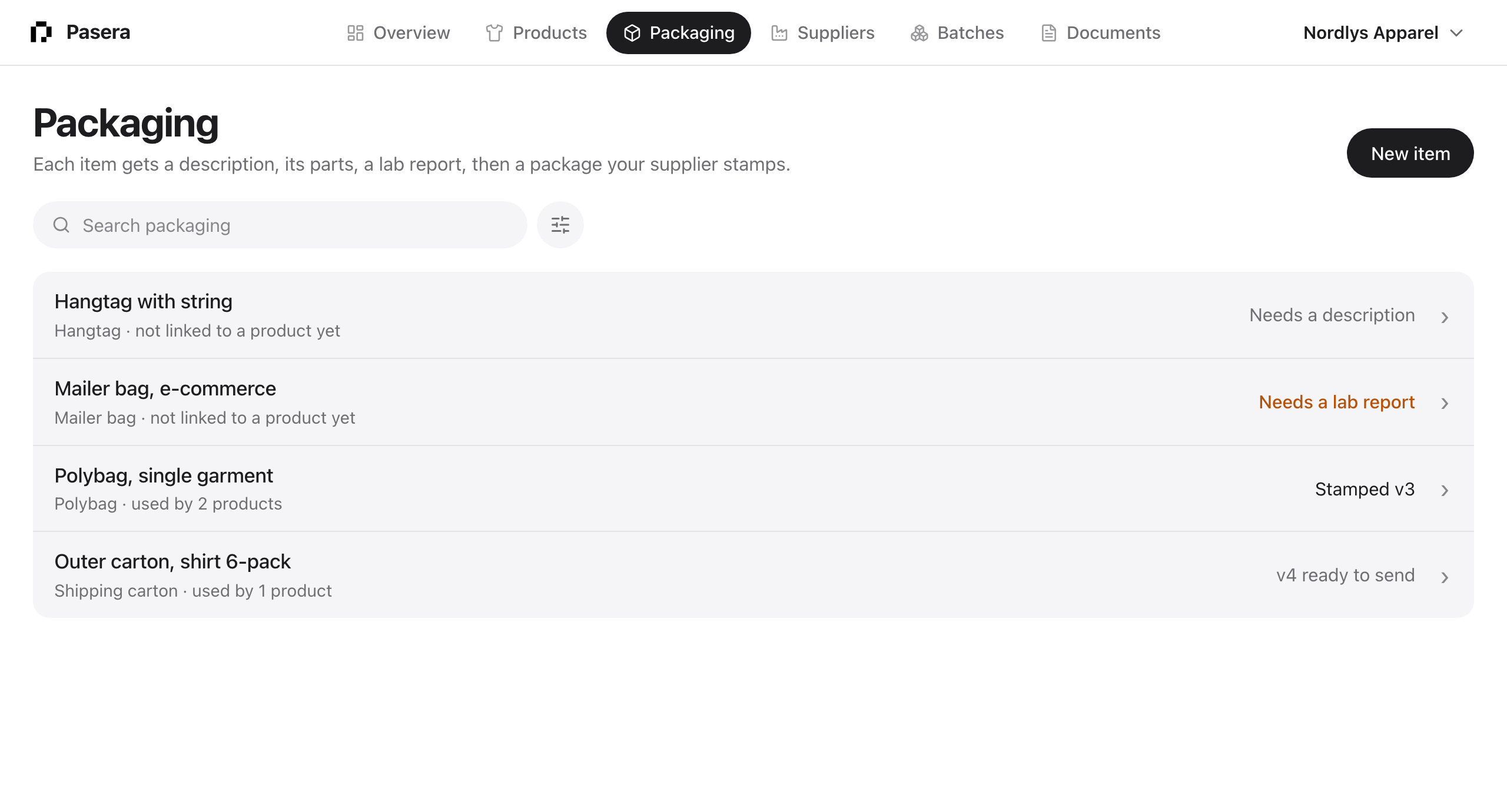
The list shows every item with its state in the right column: Needs a description, Needs parts, Needs a lab report, Ready to generate, Ready to send, Waiting for the stamp, Change requested, Stamped. Search, filter by status or type, and sort by name, SKU, type, status or date.
Name
What you would call it on a purchase order, and what kind of thing it is. Suggested names appear as you type, and picking one sets the type. Link the finished products that ship in it under “Used by”; a product can ship in several items, such as its carton and the transport carton around it.
Describe
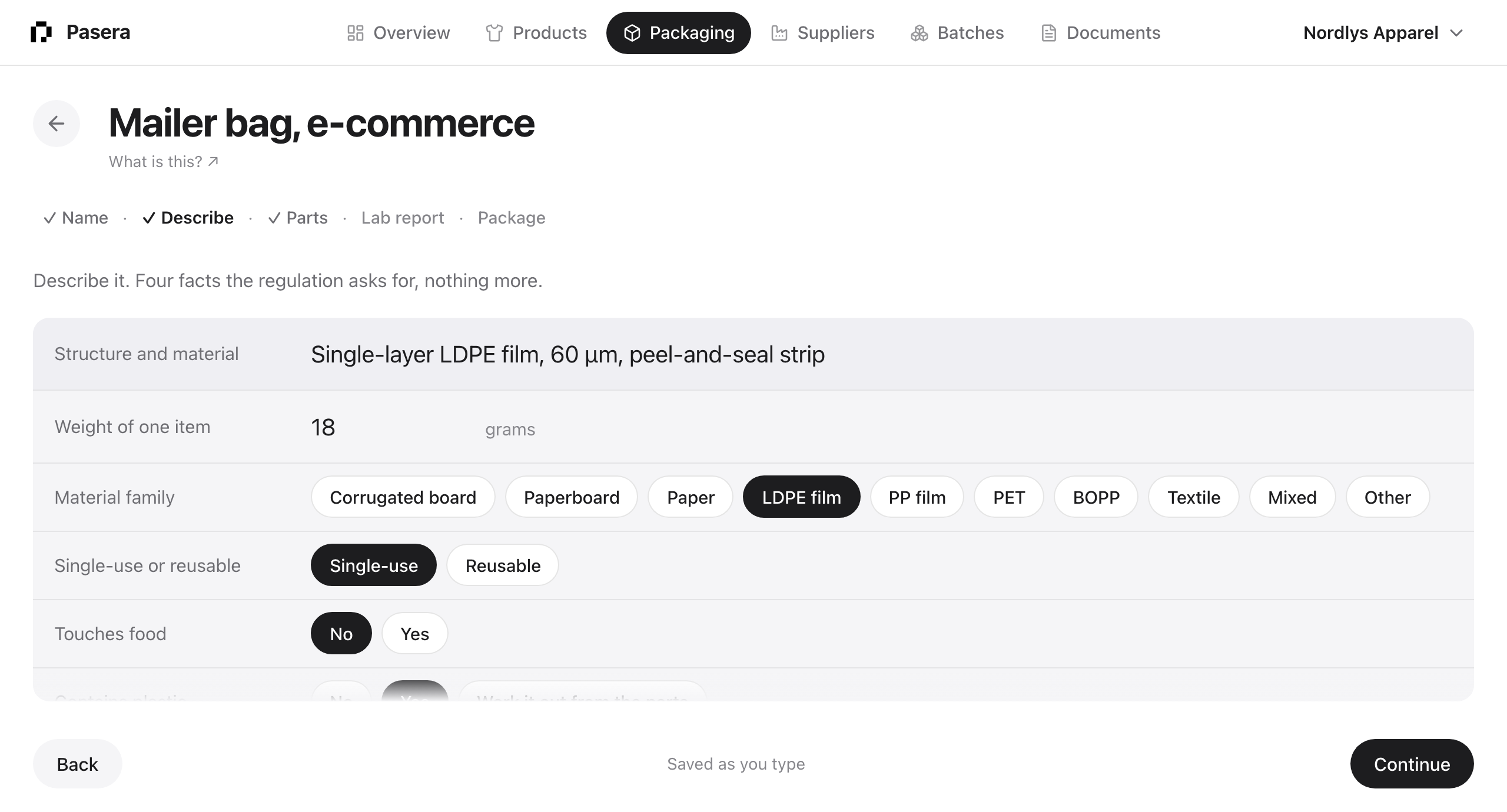
Four facts the regulation asks for: the structure and material in a sentence, the weight of one item in grams, single-use or reusable, and whether it touches food. Food contact adds a PFAS test report to step four. Everything saves as you type.
Under Optional are the details the documents print when you have them: outer and inner size in centimetres, flute type and board weights for corrugated board and paper, printing, and glue or tape. Left empty, the documents show a dash.
Parts
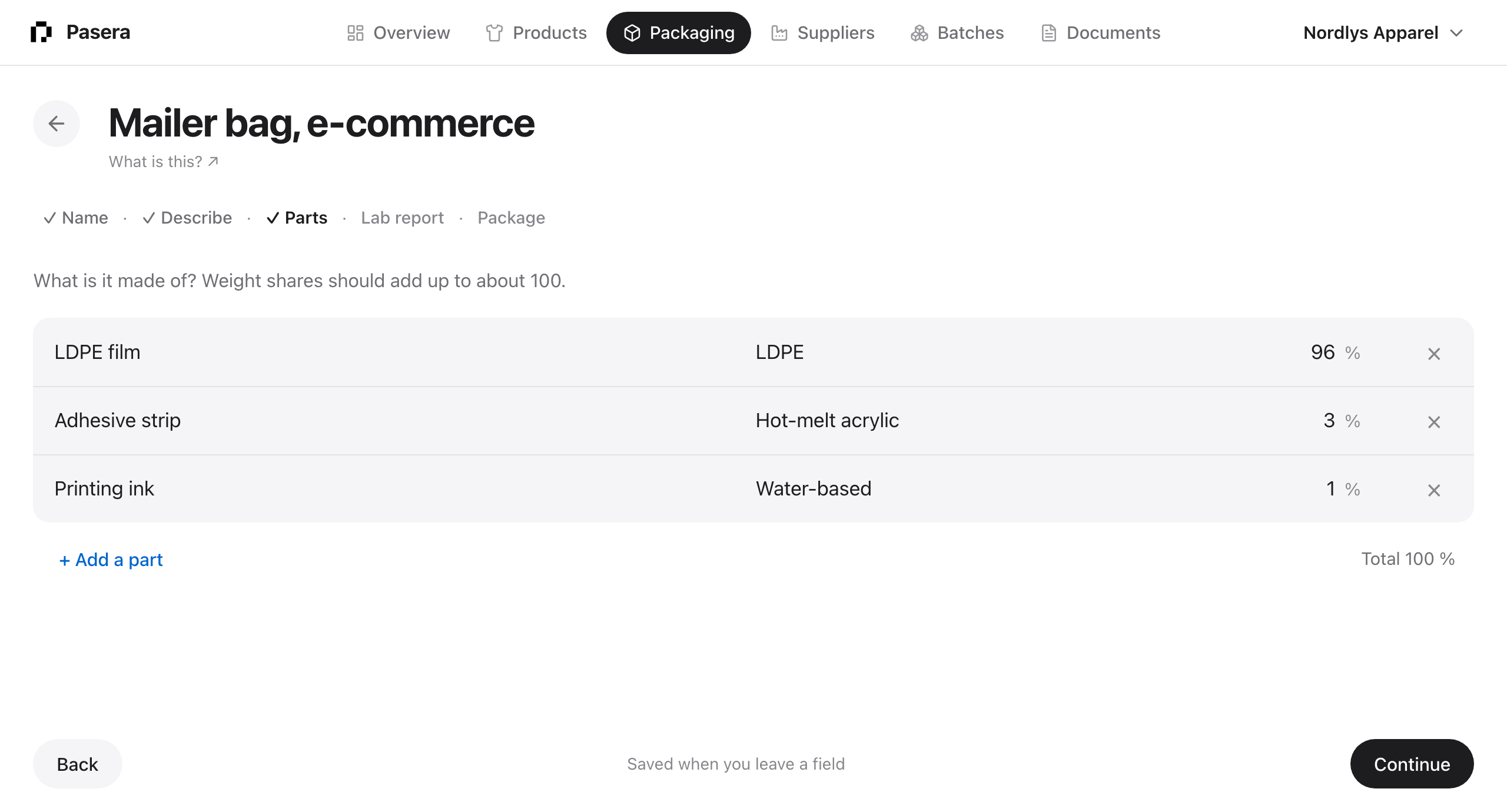
What it is made of: film, print, tape, board, each with its share of the weight. Pasera guesses the material family from the name you type. Shares should add up to about 100.
Lab report
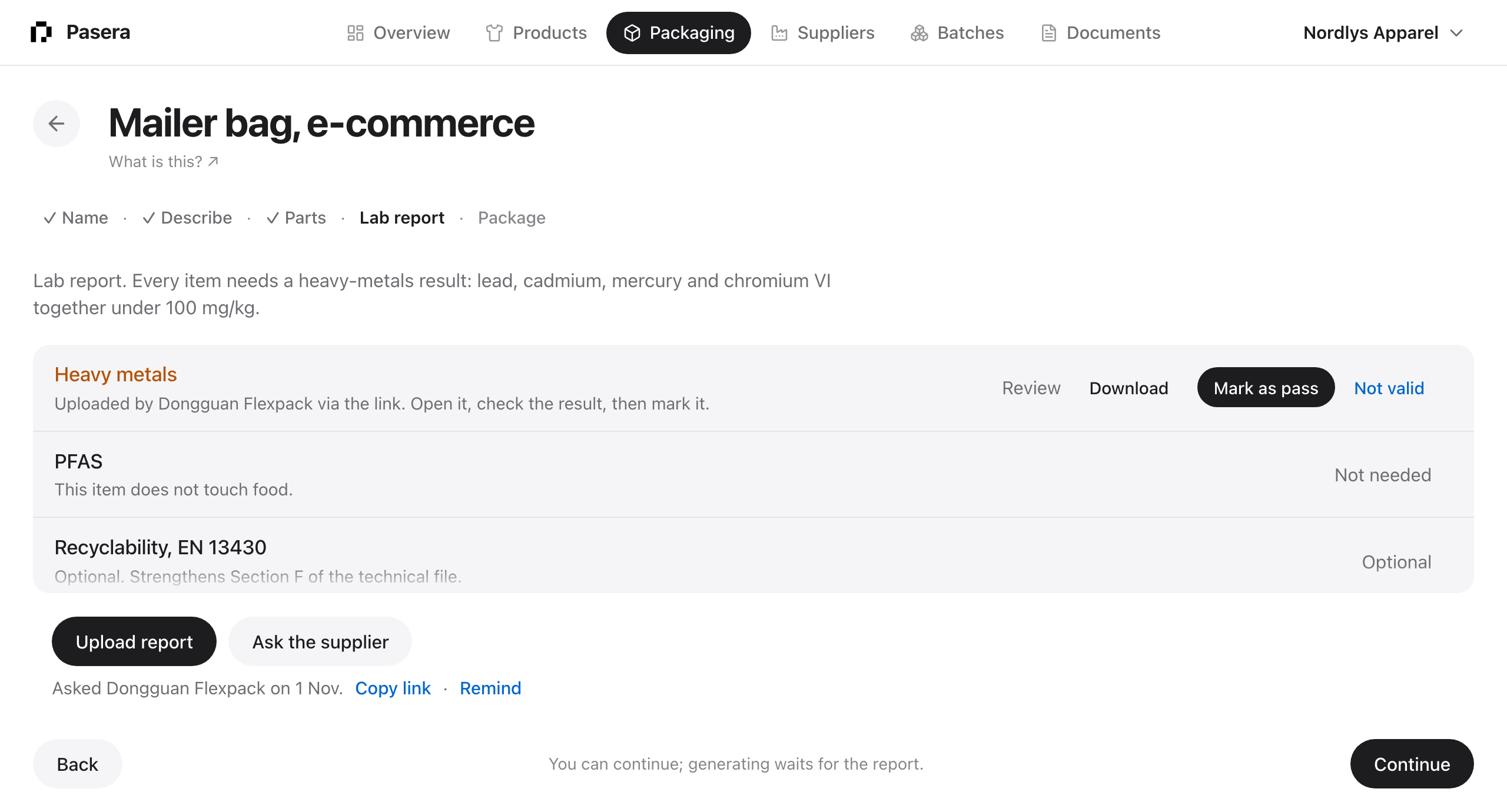
A heavy-metals report (lead, cadmium, mercury, hexavalent chromium) with the laboratory and the report number, and a PFAS report when the item touches food. Upload the PDF yourself, or ask the supplier for it through their link; a report they upload waits for you to review and mark as a pass before it counts.
There are three ways to add documents:
- Upload. Choose a lab report or a certificate and drop one or more files. Each file becomes its own report or certificate; with several files, add the report numbers per report afterwards.
- From your documents. Pick a lab report or certificate you already have. One lab report often covers several packaging items, so the same report can sit on each of them; the file is kept once, and removing it from one item leaves it on the others. A supplier upload you have not reviewed yet is reused only after you mark it on its own item.
- Ask the supplier. Send the supplier link and they upload what is missing.
A test can have several reports, for example when the board, the ink and the glue were tested separately. Every report and certificate on the item is listed in the technical file; the declaration cites a passing heavy-metals report that has its number.
Package
When the item is described, its parts are listed and the reports are in, Generate writes two documents: the declaration of conformity, signed electronically by the signatory from your company details, and the technical file with the composition, the test results and the supplier declaration. Each generation is a new version; the old one stays in Documents as superseded.
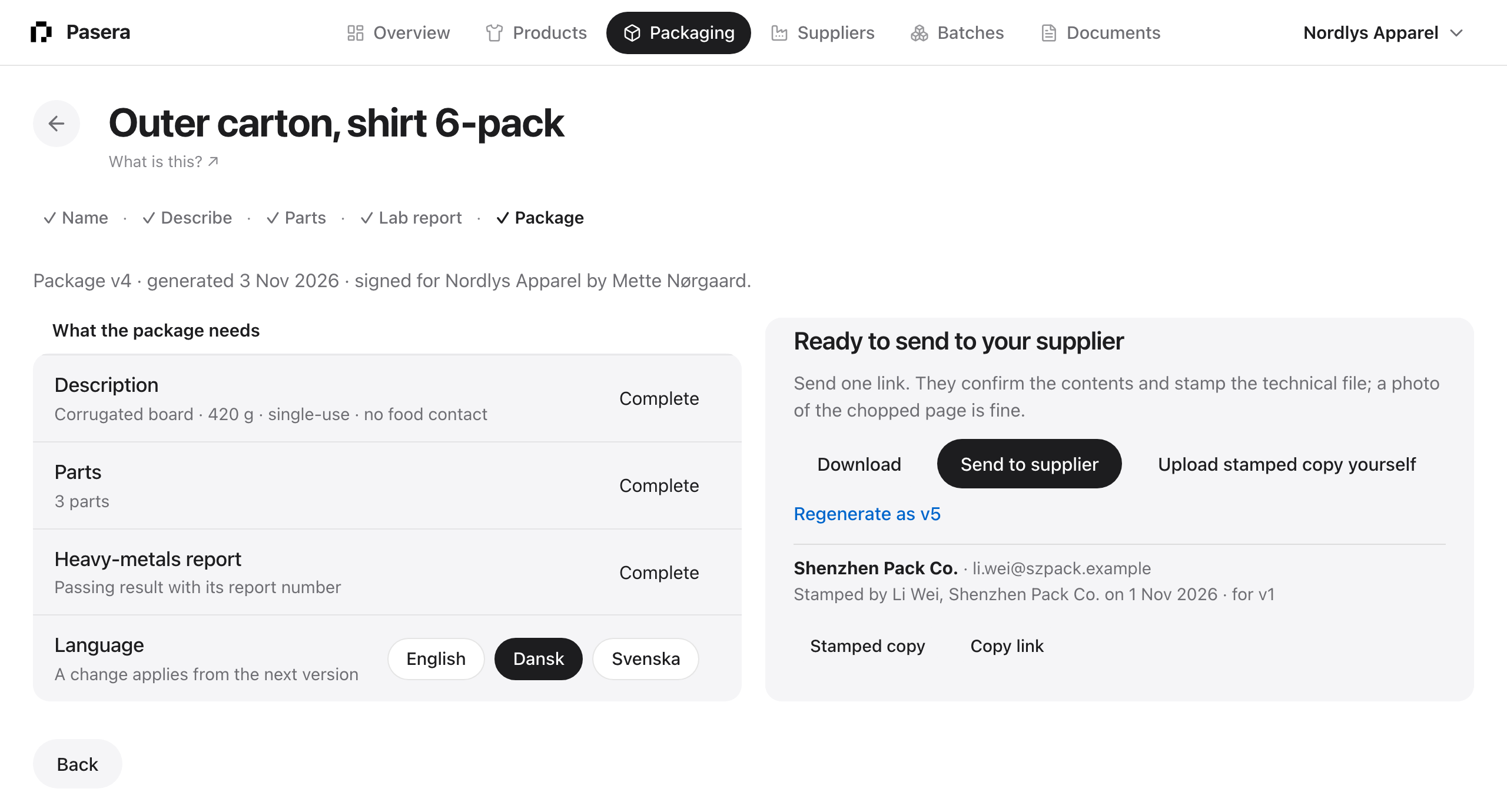
The Language row on this step sets the language of the declaration, the technical file and the accompanying document: English, Dansk or Svenska. A new item follows the language you use Pasera in. Once a package exists, a change applies from the next version, so generate again to get it in the new language. The declaration should be in the official language of the member state where the packaging is placed on the market.
Rule watch. PPWR applies in stages: design-for-recycling criteria by 1 January 2028, harmonised labelling from 12 August 2028, and recyclability grades, recycled content in plastic and the minimisation criteria from 1 January 2030. The Rule watch row on this step names the next rule for the item. From 120 days before a date, the item appears under Needs you on the Overview and owners and editors get one email. Once the date has passed, every package generated before it is flagged “New version needed” until you generate it again.
When the item changes. Edit the description, the parts, the reports or the company details after generating, and this step says “The item changed after v1” with a Generate v2 button. The documents keep showing what was there when they were generated until you make a new version; the supplier then stamps the new one.
From here, Send to supplier creates the link, see Suppliers and the stamp. A change the supplier asks for shows on this step and on the Overview; fix it and generate again, their link keeps working.
Stamped
Once the supplier stamps, a sixth step appears with the stamped copy, who signed and when. The item is done. Changing its description or parts later starts a new version that needs a new stamp; changing only your signatory does not.